






如果您不熟悉 NSFetchedResultsController,它允许您有效地管理从 Core Data 查询请求返回的结果,以提供数据给 UITableView 或 UICollectionView。NSFetchedResultsController 监控 Core Data 对象的变化,并通知视图这些变化,让您能够对它们做出反应。1
使用 NSFetchedResultsController 和 NSFetchedResultsControllerDelegate 很棒,但遗憾的是它涉及许多模板化代码。幸运的是,有了 DATASource,您不再需要这样做。
- 封装了 NSFetchedResultsController 和 NSFetchedResultsControllerDelegate 的模板化代码
- 开箱即支持带有索引的表格
- 开箱即支持分区的集合
- Swift
- Objective-C 兼容性
目录
UITableView
基本用法
将你的表格视图连接到Task模型,并使UITableView对插入、更新和删除做出反应,就像这样简单。
Swift
lazy var dataSource: DATASource = {
    let request: NSFetchRequest = NSFetchRequest<NSFetchRequestResult>(entityName: "Task")
    request.sortDescriptors = [NSSortDescriptor(key: "title", ascending: true)]

    let dataSource = DATASource(tableView: self.tableView, cellIdentifier: "Cell", fetchRequest: request, mainContext: self.dataStack.mainContext, configuration: { cell, item, indexPath in
        cell.textLabel?.text = item.valueForKey("title") as? String
    })

    return dataSource
}()

override func viewDidLoad() {
  super.viewDidLoad()

  self.tableView.dataSource = self.dataSource
}
Objective-C
NSFetchRequest *request = [[NSFetchRequest alloc] initWithEntityName:@"Task"];
request.sortDescriptors = @[[NSSortDescriptor sortDescriptorWithKey:@"title" ascending:YES]];

DATASource *dataSource = [[DATASource alloc] initWithTableView:self.tableView
                                                cellIdentifier:@"Cell"
                                                  fetchRequest:request
                                                   mainContext:self.dataStack.mainContext
                                                   sectionName:nil
                                                 configuration:^(UITableViewCell * _Nonnull cell, NSManagedObject * _Nonnull item, NSIndexPath * _Nonnull indexPath) {
                                                     cell.textLabel.text = [item valueForKey:@"name"];
                                                 }];

self.tableView.dataSource = dataSource;
分节UITableView
DATASource提供了一个简单的方式来显示分节UITableView,你只需指定用于分组items的属性。这个属性位于dataSource初始化器中,作为名为sectionName的参数。
查看TableViewControllerWithSections 示例,我们有一个按名称分节的UITableView,其中每个节由名称的第一个字母定义,就像联系人应用一样!
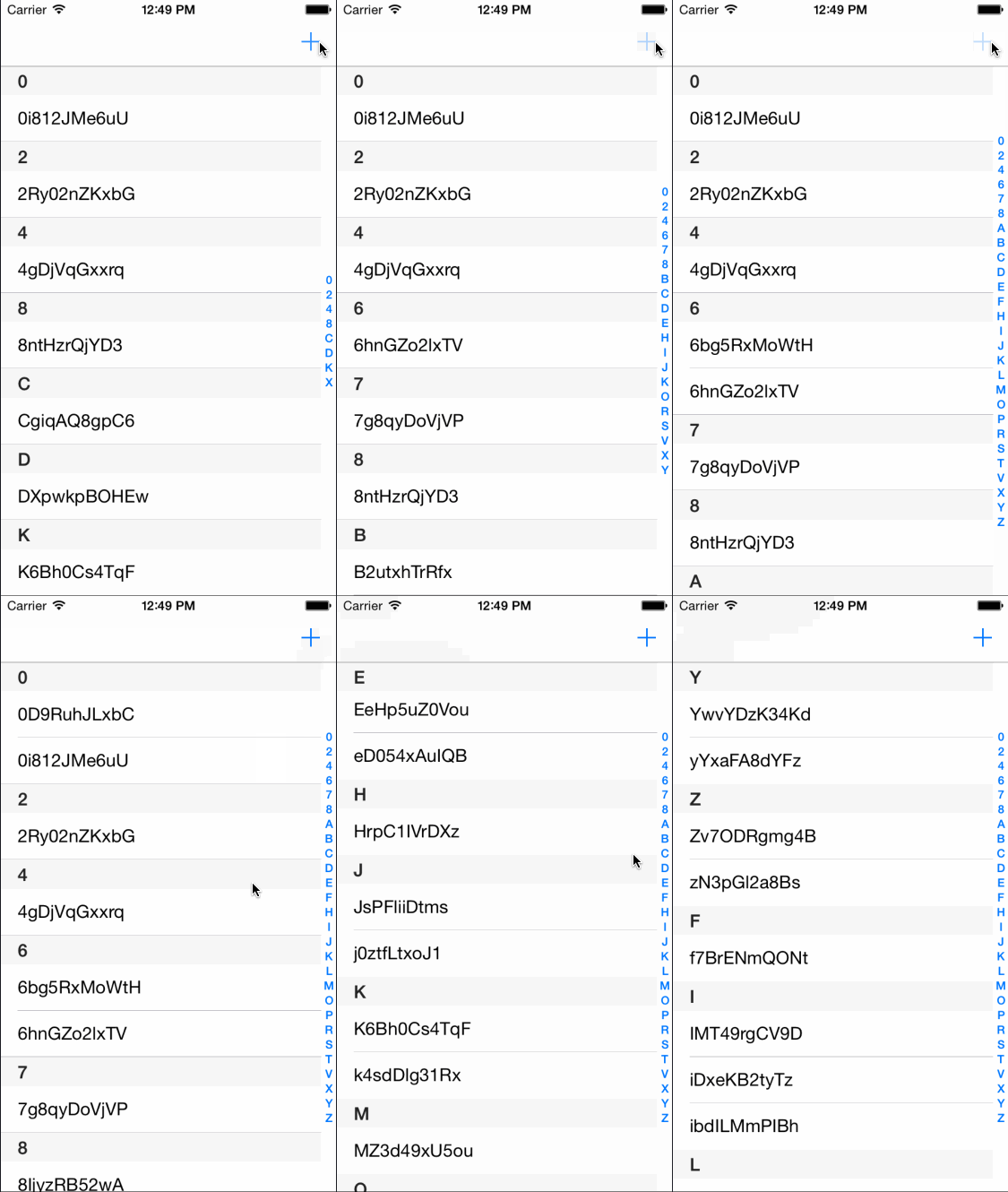
不分页的分节UITableView
你可以通过重写生成它们的函数并只返回一个空的索引列表来关闭索引。然后将DATASourceDelegate协议添加到你的控制器中,然后实现sectionIndexTitlesForDataSource:dataSource:tableView方法,如下所示
self.dataSource.delegate = self

extension MyController: DATASourceDelegate {
    func sectionIndexTitlesForDataSource(dataSource: DATASource, tableView: UITableView) -> [String] {
        return [String]()
    }
}
自定义标题
默认情况下,DATASource使用UITableView的内置标题。但是,许多应用程序在使用分节表格视图时需要使用自定义标题。为了能够使用你的自定义头部视图,你需要禁用内置的标题,通过在DATASourceDelegate中实现dataSource:tableView:titleForHeaderInSection:并使它返回nil。
self.dataSource.delegate = self

extension MyController: DATASourceDelegate {
    func dataSource(dataSource: DATASource, tableView: UITableView, titleForHeaderInSection section: Int) -> String? {
        return nil
    }
}DATASource还提供了一个简单的方法来获取特定节的标题,这对于处理自定义标题非常有用。
let sectionTitle = self.dataSource.titleForHeaderInSection(section)UITableViewDataSource
数据源拥有你的 UITableViewDataSource,提供最常见的任务的原型功能,但如果你想重写任何 UITableViewDataSource 方法,可以使用 DATASourceDelegate。
UICollectionView
基本用法
将 UICollectionView 连接起来与使用 UITableView 类似简单,只需使用此方法。
Swift:
let request: NSFetchRequest = NSFetchRequest<NSFetchRequestResult>(entityName: "Task")
request.sortDescriptors = [NSSortDescriptor(key: "title", ascending: true)]

let dataSource = DATASource(collectionView: self.collectionView, cellIdentifier: "Cell", fetchRequest: request, mainContext: self.dataStack.mainContext, configuration: { cell, item, indexPath in
    cell.textLabel.text = item.valueForKey("title") as? String
})

collectionView.dataSource = dataSource
Objective-C
NSFetchRequest *request = [[NSFetchRequest alloc] initWithEntityName:@"Task"];
request.sortDescriptors = @[[NSSortDescriptor sortDescriptorWithKey:@"title" ascending:YES]];

DATASource *dataSource = [[DATASource alloc] initWithCollectionView:self.collectionView
                                                     cellIdentifier:CollectionCellIdentifier
                                                       fetchRequest:request
                                                        mainContext:self.dataStack.mainContext
                                                        sectionName:nil
                                                      configuration:^(UICollectionViewCell * _Nonnull cell, NSManagedObject * _Nonnull item, NSIndexPath * _Nonnull indexPath) {
                                                          CollectionCell *collectionCell = (CollectionCell *)cell;
                                                          [collectionCell updateWithText:[item valueForKey:@"name"]];
                                                      }];

self.collectionView.dataSource = dataSource;
分区的 UICollectionViewController
数据源提供了一种简单的方式来显示分组的 UICollectionView,你只需指定用于将项目分组的属性。此属性位于 dataSource 初始化器中,称为 sectionName 参数。这将创建一个可重复使用的 collectionView 标题。
请查看 CollectionViewControllerWithSections 示例,其中我们使用名称的首字母作为标题,就像 Contacts.app 一样!

UICollectionViewDataSource
数据源拥有你的 UICollectionViewDataSource,提供最常见的任务的原型功能,但如果你需要重写任何 UICollectionViewDataSource 方法,可以使用 DATASourceDelegate。请查看 CollectionView 示例,其中我们展示了如何向由 数据源 支持的 UICollectionView 添加页脚视图。
自定义更改动画
默认情况下,使用 UITableViewRowAnimation.automatic 动画来实现插入、更新和删除操作,但如果你要覆盖这些动画类型,可以在 DATASource 上使用 animations 字典。
使用淡入动画实现插入动画
let dataSource = ...
dataSource.animations[.insert] = .fade
禁用所有动画
let dataSource = ...
dataSource.animations = [.update: .none, .move  : .none, .insert: .none]
安装
DATASource 可通过 CocoaPods 获取。要安装,只需将以下行添加到你的 Podfile 中
pod 'DATASource', '~> 7'DATASource 也可通过 Carthage 获取。要安装,只需将以下行添加到你的 Cartfile 中
github "SyncDB/DATASource" ~> 7.0作者
Elvis Nuñez, @3lvis
许可协议
DATASource 程序在 MIT 许可证下可用。更多信息请参阅 LICENSE 文件。